The Allocation Report is designed to provide the information needed in order to meet the Allocations responsibilities in full. The Allocation Report calculates the World Evangelism Fund (WEF), Nazarene Benefits, Education and District allocations. To access the report, go to the Checkbook screen, click Reports and then click Allocations.
We recommend using the Allocation Report in the following way.
- Choose either "YTD-Transaction Date" or "YTD-Prev Month End" in the Date Selection menu.(upper-left of window)
- Click "Total Due" option in upper-center of window. Only choose "Total Paid" if you intend to pay a lesser WEF amount.
- The Net Due column (very last column) indicates the amount needed to stay up-to-date on Allocations.
- To Print the report, click the Print button in the upper right corner of the window.
Here is a sample report and explanation of options:
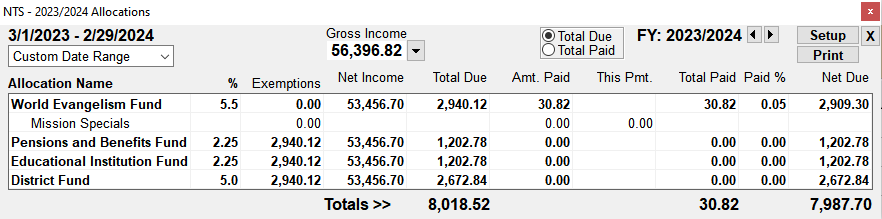
- Report Date Range - Select range by clicking the drop-down arrow in the upper-left area of the window. You can optionally click on either the Start or End date and manually select from the pop-up Calendar. The Range selected will determine the Gross/Net Income for the Period, which will then be used to calculate the Allocation Amounts due.
- Calculation Option (Total Due/Total Paid) - The Total Due is automatically used for calculating all Allocation amounts unless Total Paid is selected.
- Gross Income - This is the total of all Tax-deductible
Contributions posted. Click the
 next
to Gross Income to see a detailed listing of Fund Totals. Double click on any fund to
see a detailed listing of all contributions made to that Fund. See links below for
more information on how income is calculated.
next
to Gross Income to see a detailed listing of Fund Totals. Double click on any fund to
see a detailed listing of all contributions made to that Fund. See links below for
more information on how income is calculated. - Allocation Name - The name of the allocation.
- Goal % - The percentage of Net Income due for each Allocation.
- Exemptions - This is the amount of Income Exemption for each allocation. See Allocation Setup for more information.
- Net Income - This is the Gross Income minus the Exemptions. This amount is multiplied by the percentage to determine the amount due for the allocation. Net Income = Gross Income - Exemptions.
- Total Due - The amount due necessary to fully pay the Allocation. Total Due = Net Income x Goal percentage.
- Amount Paid - Total within specified Date Range. Double click on any amount in this column to see a detailed listing of all payments made to the allocation. Only payments made to the Linked Expense Accounts will apply.
- This Pmt - Use this column to type in a temporary amount of the intended payment in order to re-calculate Allocations Due. After entering an amount, press Enter on the keyboard.
- Paid "By Others" - If payments have been made on behalf of the Church and not received by the Church, but instead sent directly to the end recipient, then they can be recorded in this column. Click here for instructions.
- Total Paid - This is the amount paid plus the "This Payment" AND "By Others" Amounts.
- Paid % - The Percent of Net Income paid.
- Net Due - Total Due minus Total Paid. A NEGATIVE amount indicates over-payment.
- Total Due, Total Paid and Net Due amounts are included at the bottom of the Report. Total Paid DOES NOT include amounts paid towards Missions Specials. If the Net Due is less than zero, then 0.00 will be shown.
- The Amounts paid for WEF and Mission Specials REDUCE the Net Income Amount used to calculate Allocation amounts Due.
For more information see: